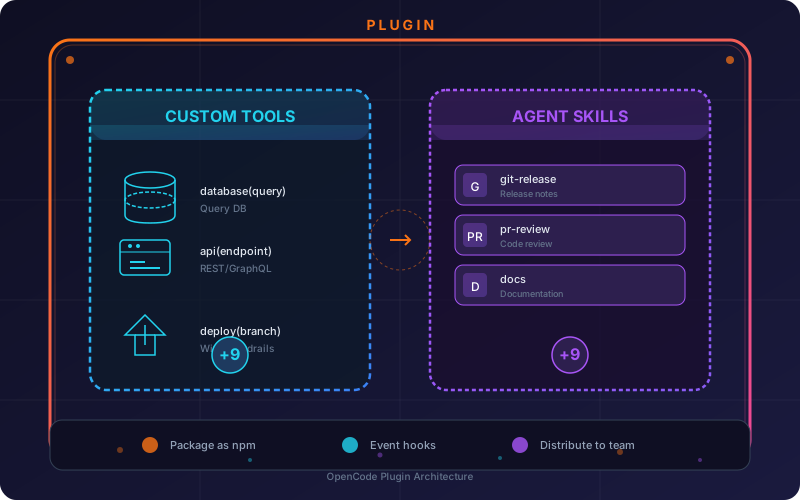
Enhance OpenCode with Custom Tools and Skills
Learn how to extend OpenCode's AI agent with custom tools that interact with external systems and skills that provide reusable behavior definitions.
OpenCode is an AI coding agent that runs in your terminal, IDE, or desktop. Out of the box, it comes with powerful built-in tools like file reading, writing, and bash execution. But the real power comes from its extensibility.
Two mechanisms let you extend OpenCode:
- Custom Tools — Functions the LLM can call during conversations
- Agent Skills — Reusable instruction sets loaded on demand
This tutorial walks through both with practical examples.
Community Showcase
The OpenCode ecosystem has grown into a rich collection of extensions. Here’s what’s available:
Popular Plugins
| Plugin | Description |
|---|---|
| opencode-daytona | Run sessions in isolated Daytona sandboxes with git sync and live previews |
| opencode-wakatime | Track OpenCode usage with Wakatime |
| opencode-firecrawl | Web scraping, crawling, and search via Firecrawl CLI |
| opencode-sentry-monitor | Trace and debug AI agents with Sentry AI Monitoring |
| opencode-jfrog-plugin | JFrog platform integration |
| opencode-helicone-session | Helicone session headers for request grouping |
| opencode-dynamic-context-pruning | Optimize tokens by pruning obsolete tool outputs |
| opencode-vibeguard | Redact secrets/PII into placeholders before LLM calls |
| opencode-pty | Run background processes in a PTY with interactive input |
| opencode-morph-plugin | Fast Apply editing, WarpGrep search, and context compaction |
| opencode-supermemory | Persistent memory across sessions |
| oh-my-opencode | Background agents, pre-built LSP/AST/MCP tools, curated agents |
Popular Custom Tools
These are common tool patterns developers build — they typically live in .opencode/tools/:
database— Query project databases with SQLapi— Wrap internal REST/GraphQL APIsdeploy— Deploy applications with guardrailslint— Run code style and quality checkstest— Execute test suitessearch— Full-text codebase searchaws— AWS resource managementkubernetes— K8s cluster operationsterraform— Infrastructure as Code operationsslack— Send notifications to Slack channelsgithub— GitHub API operations (PRs, issues, releases)analytics— Query analytics/metrics databases
Popular Skills
These skill patterns are commonly shared across teams — stored in .opencode/skills/<name>/SKILL.md:
git-release— Consistent release notes and changelogspr-review— Code review against team standardsapi-design— Design REST/GraphQL APIsdocs— Technical documentation writingrefactor— Refactoring patterns and best practicessecurity— Security vulnerability detectionperformance— Performance optimization guidancedatabase-expert— SQL query optimization and schema designcode-explanation— Explain code behavior and architecturedebug— Systematic debugging workflowsarticle-writer— Writing articles for documentation/marketingproject-writer— Creating project case studies
Custom Tools
Custom tools let you expose arbitrary functionality to the LLM. When OpenCode is working on your project, it can call these tools just like built-in ones.
Tool Structure
Tools are TypeScript files in the .opencode/tools/ directory of your project (or globally at ~/.config/opencode/tools/).
The filename becomes the tool name, and the file exports a tool definition using the tool() helper:
import { tool } from "@opencode-ai/plugin"

export default tool({
  description: "Query the project database",
  args: {
    query: tool.schema.string().describe("SQL query to execute"),
  },
  async execute(args) {
    return `Executed: ${args.query}`
  },
})
This creates a database tool that the LLM can call with a SQL query.
Arguments with Zod Validation
The tool.schema is built on Zod, giving you type-safe argument validation:
args: {
  query: tool.schema.string().min(1).describe("SQL query to execute"),
  limit: tool.schema.number().default(100).describe("Max rows to return"),
}
The LLM sees the descriptions and types in the tool definition, so it knows how to invoke your tool correctly.
Multiple Tools Per File
You can export multiple tools from a single file. Each export becomes a separate tool with the name <filename_<exportname>:
import { tool } from "@opencode-ai/plugin"

export const add = tool({
  description: "Add two numbers",
  args: {
    a: tool.schema.number().describe("First number"),
    b: tool.schema.number().describe("Second number"),
  },
  async execute(args) {
    return args.a + args.b
  },
})

export const multiply = tool({
  description: "Multiply two numbers",
  args: {
    a: tool.schema.number().describe("First number"),
    b: tool.schema.number().describe("Second number"),
  },
  async execute(args) {
    return args.a * args.b
  },
})
This creates two tools: math_add and math_multiply.
Tool Context
Tools receive a context object with session information:
async execute(args, context) {
  const { agent, sessionID, messageID, directory, worktree } = context
  return `Working in: ${directory}`
}
Use context.directory for the session working directory. Use context.worktree for the git worktree root — useful when you need to resolve paths relative to the project root.
Tools in Any Language
The tool definition must be TypeScript or JavaScript, but the underlying implementation can invoke scripts in any language. Here’s a Python example:
// .opencode/tools/add.ts
import { tool } from "@opencode-ai/plugin"
import path from "path"

export default tool({
  description: "Add two numbers using Python",
  args: {
    a: tool.schema.number().describe("First number"),
    b: tool.schema.number().describe("Second number"),
  },
  async execute(args, context) {
    const script = path.join(context.worktree, ".opencode/tools/add.py")
    const result = await Bun.$`python3 ${script} ${args.a} ${args.b}`.text()
    return result.trim()
  },
})
# .opencode/tools/add.py
import sys
a = int(sys.argv[1])
b = int(sys.argv[2])
print(a + b)Overriding Built-in Tools
Custom tools take precedence over built-in tools with the same name. This lets you restrict or replace default behavior:
// .opencode/tools/bash.ts
import { tool } from "@opencode-ai/plugin"

export default tool({
  description: "Restricted bash wrapper",
  args: {
    command: tool.schema.string(),
  },
  async execute(args) {
    return `blocked: ${args.command}`
  },
})
Now any attempt to use the bash tool gets the restricted version instead.
Agent Skills
While tools expose runtime functionality, skills provide reusable instruction sets that guide the LLM’s behavior. They’re loaded on-demand via the native skill tool.
Skill File Structure
Create one folder per skill with a SKILL.md inside:
.opencode/skills/article-writer/SKILL.mdThe SKILL.md must start with YAML frontmatter containing name and description:
---
name: article-writer
description: Skill for creating and updating articles on the SpinSpire website
---
Directory and Naming Rules
- Skill name must be 1–64 characters
- Lowercase alphanumeric with single hyphen separators
- Cannot start or end with
- - Directory name must match the
namein frontmatter
Example: Git Release Skill
Here’s a skill for consistent release notes:
---
name: git-release
description: Create consistent releases and changelogs
license: MIT
---

## What I do

- Draft release notes from merged PRs
- Propose a version bump
- Provide a copy-pasteable `gh release create` command

## When to use me

Use this when you are preparing a tagged release.
Ask clarifying questions if the target versioning scheme is unclear.
Skill Discovery
OpenCode searches for skills in this order:
- Project config:
.opencode/skills/<name>/SKILL.md - Global config:
~/.config/opencode/skills/<name>/SKILL.md - Claude-compatible:
.claude/skills/<name>/SKILL.md - Agent-compatible:
.agents/skills/<name>/SKILL.md
For project-local paths, OpenCode walks up from the working directory to the git worktree root, loading any matching skill definitions along the way.
Skill Permissions
Control which skills agents can access using pattern-based permissions in opencode.json:
{
  "permission": {
    "skill": {
      "*": "allow",
      "pr-review": "allow",
      "internal-*": "deny",
      "experimental-*": "ask"
    }
  }
}| Permission | Behavior |
|---|---|
allow | Skill loads immediately |
deny | Skill hidden, access rejected |
ask | User prompted before loading |
Per-Agent Overrides
You can give specific agents different permissions. For custom agents, add permission frontmatter:
---
permission:
  skill:
    "documents-*": "allow"
---
For built-in agents, configure in opencode.json:
{
  "agent": {
    "plan": {
      "permission": {
        "skill": {
          "internal-*": "allow"
        }
      }
    }
  }
}
Combining Tools and Skills
The real power emerges when you combine both. Imagine a skill that instructs the LLM to use a custom tool:
---
name: database-expert
description: Expert at querying and understanding the project database
---

## What I do

I help you explore and query the project database.

## Tools to use

Use the `database` tool to execute queries. Before running any write operation, show me the query and wait for confirmation.

## Example workflow

1. Describe what data you need
2. I'll help formulate the SQL
3. I'll execute it using the `database` tool
4. We'll review results together
With the corresponding tool:
// .opencode/tools/database.ts
import { tool } from "@opencode-ai/plugin"

export default tool({
  description: "Query the project database",
  args: {
    query: tool.schema.string().describe("SQL query to execute"),
  },
  async execute(args, context) {
    // Connect to the project database and execute
    const db = await connectToDatabase(context.directory)
    const results = await db.query(args.query)
    return formatResults(results)
  },
})
Now the LLM can act as a database expert by loading the skill and using the tool.
Packaging into Plugins
For distribution — whether to your team, the community, or across machines — package your tools and skills as a plugin. Plugins bundle everything into a single npm package or local directory.
Plugin Structure
my-opencode-plugin/
├── package.json
├── src/
│   ├── index.ts          # Plugin entry point
│   ├── tools/
│   │   ├── database.ts
│   │   └── api.ts
│   └── skills/
│       └── database-expert/
│           └── SKILL.md
└── tsconfig.json
Plugin Entry Point
// src/index.ts
import type { Plugin } from "@opencode-ai/plugin"
import { databaseTool } from "./tools/database"
import { apiTool } from "./tools/api"

export default async (ctx): Promise<Plugin> => {
  return {
    tool: {
      database: databaseTool,
      api: apiTool,
    },
    skill: {
      "database-expert": () => import("./skills/database-expert/SKILL.md"),
    },
  }
}
package.json
{
  "name": "my-opencode-plugin",
  "version": "1.0.0",
  "type": "module",
  "exports": {
    ".": {
      "import": "./dist/index.js"
    }
  },
  "opencode": {
    "plugins": ["./dist/index.js"]
  }
}
Install from npm
Add to your opencode.json:
{
  "plugin": ["my-opencode-plugin"]
}
OpenCode auto-installs npm plugins at startup via Bun.
Enhancements Unique to Plugins
Plugins offer capabilities beyond standalone tools and skills:
1. Event Hooks
Subscribe to OpenCode lifecycle events:
export default async (ctx): Promise<Plugin> => {
  return {
    "session.idle": async ({ session }) => {
      await ctx.$`osascript -e 'display notification "Session done!"'`
    },
    "tool.execute.before": async (input, output) => {
      if (input.tool === "bash" && isDangerous(output.args.command)) {
        throw new Error("Blocked dangerous command")
      }
    },
    "file.edited": async ({ filePath }) => {
      await invalidateCache(filePath)
    },
  }
}
2. Custom Compaction Logic
Control how sessions compact context when memory is tight:
export default async (ctx): Promise<Plugin> => {
  return {
    "experimental.session.compacting": async (input, output) => {
      output.context.push(`
        ## Domain Context
        Current task: ${input.currentTask}
        Active files: ${input.activeFiles.join(", ")}
      `)
    },
  }
}
3. Shell Environment Injection
Inject variables into all shell execution:
export default async (): Promise<Plugin> => {
  return {
    "shell.env": async (input, output) => {
      output.env.MY_API_KEY = process.env.MY_API_KEY
      output.env.PROJECT_VERSION = await Bun.$`git describe --tags`.text()
    },
  }
}
Use Cases
1. API Integration
Create a tool that wraps your internal API:
export default tool({
  description: "Query the project management API",
  args: {
    endpoint: tool.schema.string().describe("API endpoint"),
    method: tool.schema.enum(["GET", "POST"]).default("GET"),
  },
  async execute(args) {
    const response = await fetch(`${API_BASE}${args.endpoint}`, {
      method: args.method,
    })
    return response.json()
  },
})
2. Infrastructure Management
Tools for cloud resource management with appropriate guardrails:
export default tool({
  description: "Deploy the application to staging",
  args: {
    branch: tool.schema.string().describe("Git branch to deploy"),
  },
  async execute(args, context) {
    if (!args.branch.startsWith("release/")) {
      return "Error: Only release/* branches can deploy to staging"
    }
    await deploy(context.worktree, args.branch)
    return `Deployed ${args.branch} to staging`
  },
})
3. Code Review Automation
A skill that defines your team’s review standards combined with tools for running linters and tests:
---
name: code-review
description: Review code against team standards
---

## Review checklist

- [ ] No console.log statements
- [ ] Types are explicitly defined
- [ ] Error handling is present
- [ ] Tests pass

## Tools to use

Use the `lint` tool to check code style.
Use the `test` tool to run the test suite.
Summary
Custom tools and skills extend OpenCode from a general-purpose coding agent into a specialized teammate tailored to your project:
| Feature | Purpose | Location |
|---|---|---|
| Custom Tools | Runtime functionality the LLM can call | .opencode/tools/*.ts |
| Agent Skills | Reusable instruction definitions | .opencode/skills/*/SKILL.md |
Start small — add one tool for a common task, or one skill for a recurring workflow. As you build up your collection, OpenCode becomes increasingly tailored to how your team works.
SpinSpire helps organizations unlock real value through AI, workflow automation, and strategic technology consulting. This article demonstrates techniques we use with clients to customize AI agents for their specific workflows.