Recording and Editing a Demo Video Using Only Free Tools on Linux
Learn how to create professional demo videos on Linux using completely free and open-source tools for screen capture, editing, captioning, and exporting to multiple formats.
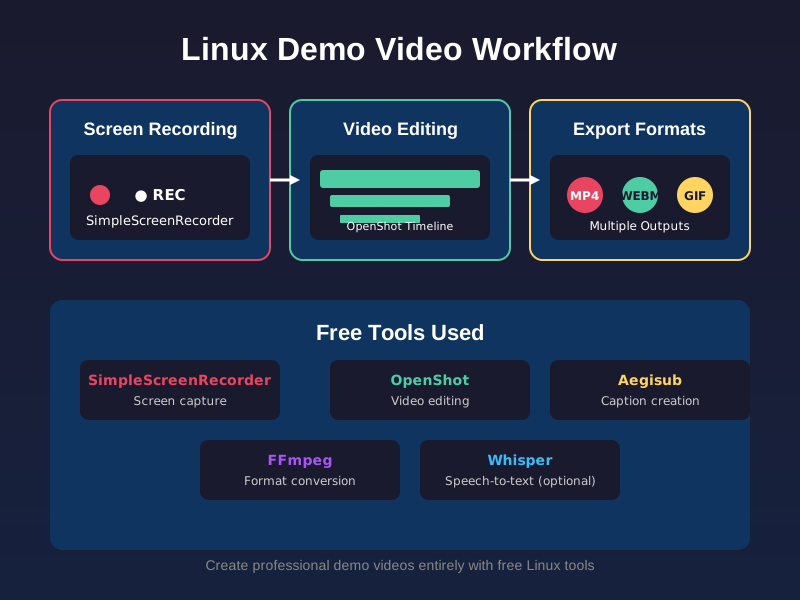
Creating demo videos doesn’t require expensive software. Linux offers excellent free and open-source tools that can handle the entire workflow from screen capture to final export. This guide walks you through creating professional demo videos using only free tools.
Screen Capture with SimpleScreenRecorder
SimpleScreenRecorder is a lightweight yet powerful screen recording tool perfect for creating demo videos on Linux.
Installation
On Ubuntu/Debian-based systems:
sudo apt install simplescreenrecorderOn Fedora:
sudo dnf install simplescreenrecorderRecording Your Demo
-
Launch SimpleScreenRecorder from your applications menu
-
Configure your recording settings:
- Input Profile: Select “Record the entire screen” or “Record a fixed rectangle” for specific area
- Video Size: Choose your resolution (1920x1080 for Full HD)
- Frame Rate: 30fps is standard for demos
- Video Source: Select your screen or specific window
- Audio Source: Choose between microphone, system audio, or both
-
Click “Continue” to proceed to output settings:
- Container: MP4 (H.264) for good compatibility
- Video Codec: libx264
- Audio Codec: AAC
- Filename: Choose where to save your recording
-
Click “Start Recording” and perform your demo
-
Click “Stop Recording” when finished
Editing with OpenShot Video Editor
OpenShot provides an intuitive interface for editing your recorded demo.
Installation
On Ubuntu/Debian-based systems:
sudo apt install openshot-qtOn Fedora:
sudo dnf install openshot-qtBasic Editing Workflow
- Launch OpenShot and create a new project
- Import your recording via File → Import Files
- Drag the video clip to the timeline
- Use the razor tool (press ‘S’) to cut out mistakes or unwanted sections
- Trim clips by dragging their edges
- Add transitions between clips by dragging them from the Transitions panel
- Add text overlays for titles or explanations using the Title tool
Enhancing Your Demo
- Zoom and Pan: Use the transform controls to zoom in on important areas
- Speed Adjustment: Speed up boring sections or slow down complex parts
- Annotations: Add arrows, highlights, or callouts using the annotation tools
- Audio Adjustments: Balance microphone and system audio levels
Adding Captions
Captions improve accessibility and comprehension, especially for viewers watching without sound.
Using Aegisub for Caption Creation
Aegisub is a powerful subtitle editor that works well with OpenShot.
Installation
sudo apt install aegisubWorkflow
- Export audio from OpenShot: File → Export → Audio Only
- Open the audio file in Aegisub
- Use the waveform to time your captions accurately
- Create subtitle styles that are easy to read
- Export as SRT or ASS format
- Import the caption file back into OpenShot as a subtitle track
Alternative: Automatic Caption Generation
For quicker results, you can use online services or these command-line tools:
Using Whisper for Speech-to-Text
# Install Whisper
pip install git+https://github.com/openai/whisper.git

# Generate captions
whisper your_audio_file.mp3 --model base --output_format srt
Exporting to Multiple Formats
Different platforms prefer different formats. Here’s how to export your final video:
MP4 (Most Compatible)
In OpenShot:
- File → Export Project
- Format: MP4
- Preset: Medium or High quality
- Export
WEBM (Web Optimization)
For better web performance:
ffmpeg -i input.mp4 -c:v libvpx-vp9 -crf 30 -b:v 0 -b:a 128k output.webmGIF (For Social Media Previews)
Create short looping previews:
ffmpeg -i input.mp4 -vf "fps=15,scale=320:-1:flags=lanczos" -c:v gif output.gifOr for higher quality GIFs with palette optimization:
ffmpeg -i input.mp4 -vf "fps=15,scale=320:-1:flags=lanczos,palettegen" palette.png
ffmpeg -i input.mp4 -i palette.png -filter_complex "fps=15,scale=320:-1:flags=lanczos [x]; [x][1:v] paletteuse" output.gif
Optimizing File Sizes
Large files can be problematic for sharing. Here’s how to reduce size without sacrificing too much quality:
Two-Pass Encoding for MP4
ffmpeg -i input.mp4 -c:v libx264 -b:v 1000k -pass 1 -an -f mp4 /dev/null
ffmpeg -i input.mp4 -c:v libx264 -b:v 1000k -pass 2 -c:a aac -b:a 128k output.mp4
WEBM Optimization
ffmpeg -i input.mp4 -c:v libvpx-vp9 -b:v 0 -crf 25 -b:a 128k output.webmBest Practices for Professional-Looking Demos
- Plan Your Content: Outline what you’ll show before recording
- Clean Your Desktop: Remove distractions and use a neutral background
- Use a Good Microphone: Clear audio is more important than perfect video
- Keep It Concise: Aim for 2-5 minutes for most demos
- Highlight Key Areas: Use zoom and annotations to focus attention
- Add a Call to Action: End with what you want viewers to do next
Troubleshooting Common Issues
Audio/Video Sync Problems
If audio drifts during long recordings:
- Record shorter segments and concatenate in OpenShot
- Use Constant Frame Rate in SimpleScreenRecorder settings
- Check audio levels aren’t clipping
Poor Performance During Recording
- Close unnecessary applications
- Reduce recording resolution or frame rate
- Use a faster storage drive for temporary files
- Consider using hardware encoding if available
Export Failures
- Ensure you have enough disk space
- Try different export presets in OpenShot
- Check for corrupted segments in your timeline
- Update your graphics drivers
Conclusion
Creating professional demo videos on Linux doesn’t require expensive software. With tools like SimpleScreenRecorder for capture, OpenShot for editing, Aegisub for captions, and FFmpeg for format conversion, you have everything needed to produce high-quality content entirely for free.
The key to great demo videos is planning, clear audio, and concise presentation—not the price tag of your software. Start with these tools, refine your workflow, and you’ll be creating effective demos in no time.
Remember to always test your final exports on the target platforms where your audience will view them to ensure compatibility and quality.